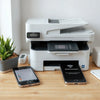
WIFI Direct Printer Setup Tips for Fast Mobile Printing
, by Amita Choudhary, 11 min reading time
, by Amita Choudhary, 11 min reading time
Updated on: September 2, 2026
If you need fast, reliable printing without extra setup, a WIFI Direct Printer can be a game changer. It lets you print from your phone, laptop, or tablet using a direct connection. That means fewer cables, fewer driver headaches, and less time waiting. In this guide, you’ll learn the key benefits, real-life use cases, and practical tips to choose and use the right printer for your needs.
Table of Contents
Introduction
A Personal Experience
Key Advantages of a WIFI Direct Printer
Quick Tips for Better Prints
How It Works in Real Life
Top Use Cases at Home and Work
What to Check Before You Buy
Summary and Next Steps
Q&A
Printing should feel simple, not stressful. When you work from home, run a small business, or manage everyday documents for school and family, delays and setup problems quickly become a daily annoyance. A WIFI Direct Printer helps you reduce that friction by enabling direct, wireless printing without relying on a shared network. You can send documents and photos straight from your device when you need them, with minimal steps and a smoother workflow.
In this post, you’ll see how direct wireless printing improves speed, convenience, and reliability. You’ll also get product-focused guidance, helpful checklists, and real-world scenarios so you can choose confidently and start printing faster.
I used to treat printing like an event. Some days it worked instantly, and other days I would lose time figuring out connections, restarting devices, or hunting for the right setting. One busy afternoon, I needed a set of documents for an urgent meeting. My router was acting up, and I didn’t have the patience to troubleshoot network settings.
Once I switched to a WIFI Direct Printer approach, the experience changed. I connected directly, selected the file, and printed without the usual back-and-forth. The best part was not just getting the job done—it was the calm feeling of knowing I had a fallback method that still worked when networks were unreliable.
If you want a similar “set it and forget it” shopping mindset for other everyday electronics, browsing a reliable category can help. For example, you can explore electronics picks to build a more dependable home setup.

Direct connection visualized with device icons linking
Want smoother results from day one? Use these quick tips to get better prints and fewer connection issues.
Direct wireless printing is designed for moments when you want speed and control. Instead of depending on your router and network discovery, you connect directly to the printer. That creates a simple path: your device sends the job, and the printer responds immediately.
This is especially helpful when you share a space with multiple devices. Your phone, laptop, and tablet can all print without constantly changing network settings. If you travel or work in different rooms, direct printing also makes it easier to keep a consistent routine.
For households that also focus on connectivity and smart home comfort, it can be useful to think beyond one device. For clean-air upgrades and smoother daily living, you can check how to choose an air purifier for better indoor comfort.
A WIFI Direct Printer is not only for “office people.” It fits real schedules and real tasks. Here are common use cases where direct wireless printing makes a noticeable difference.
Students and parents often need last-minute printouts: worksheets, project pages, and study guides. Direct printing helps reduce delays when the main Wi‑Fi is busy or far from the printer.
Freelancers, creators, and remote workers may need contracts, labels, or client forms. With direct wireless printing, it’s easier to print quickly from the device you’re already using.
Small businesses often handle invoices, receipts, and shipping documents. A direct printing workflow can simplify operations, especially when staff devices change throughout the day.
Moving between rooms or working in temporary locations is common. Direct printing keeps your method consistent without needing complicated network changes.
When you print posters, craft instructions, or photo prints for events, you want reliability and control over quality. Direct printing helps you run your tasks with fewer interruptions.
To show how this helps in practical life, here are short testimonials inspired by common customer themes (summary-style, not tied to a single individual). “I needed printing without wrestling with Wi‑Fi settings.” Another customer said, “It’s the easiest way to print from my phone in minutes.” A third shared, “Direct printing saved me during a router outage.”

Checklist-style icons for connectivity and paper settings
Choosing the right WIFI Direct Printer is about matching features to your printing habits. Instead of focusing only on price, consider what will reduce your everyday friction.
If you also want a balanced, efficient home ecosystem, it can help to consider other devices that improve everyday comfort and performance. Many customers pair dependable printing with better home electronics. You can explore more options across categories via electronics and find complementary gear for home productivity.
Before purchasing, think about your workflow. Do you print mostly from a laptop? Do you rely on your phone? Do you sometimes print from a guest device? When you align the printer features to your routine, direct wireless printing becomes more than a feature—it becomes a daily advantage.
A WIFI Direct Printer is a practical solution for anyone who wants easier printing, fewer setup hassles, and a more dependable daily workflow. By connecting directly, you can reduce network-related delays and print from your favorite devices with greater confidence. Whether you need school printouts, home office documents, or small business paperwork, direct wireless printing supports real-life tasks.
Next steps:
If you’re ready to upgrade your printing routine, browse compatible options on the site and choose a printer that fits your workflow. A better connection experience can make every print job feel simpler.
Not exactly. Wi‑Fi printing typically relies on your home network and router discovery. Direct wireless printing connects your device to the printer directly. That often reduces setup steps and can help when your main Wi‑Fi is unstable.
If the printer supports direct wireless printing, you can usually connect from your phone using the direct connection method. You still need your phone and printer to be in communication, but you may not need the same network as usual.
Common causes include selecting the wrong connection mode, long delays while devices search for printers, or outdated app/software settings. To fix this, choose the direct printing option, confirm paper settings, and run a short test print after reconnecting.
First, check that you selected the correct print quality mode. Then verify paper type and ensure the file is set for the right page size. If you still see issues, follow the printer’s maintenance routine for cleaning and alignment, since buildup can affect print output.
Disclaimer: Printing results can vary by printer model, device software, file type, and settings. Always follow the manufacturer’s instructions for connection mode, paper handling, and maintenance.


At Ysvara Lifestyle, we help people make smarter shopping choices by curating the best, most reliable products from trusted brands across electronics, home appliances, fashion, and everyday essentials. We spend hours comparing real-world performance, customer feedback, and value-for-money so you don’t have to. Every recommendation is based on usefulness, durability, and honest insights — not just hype. Our mission is simple: to make online shopping effortless, transparent, and truly helpful. Explore better choices, discover hidden deals, and buy with confidence. ✨


