Multifunction Print Scan Copy Guide for Everyday Use
, by Amita Choudhary, 11 min reading time
, by Amita Choudhary, 11 min reading time
Updated on: 2026-08-31
If you need a device that can handle documents without delays, a Multifunction Print Scan Copy solution is a smart upgrade. It helps you print, scan, and copy in one place, so your workflow stays smooth at home or in the office. You can save time on repetitive tasks, reduce equipment clutter, and keep important papers organized. When you choose a reliable all-in-one model, you also cut down on the hassle of juggling separate machines.
What “Multifunction Print Scan Copy” really means
Key benefits for home and small office
Step-by-Step setup and daily use
Practical use cases you’ll feel immediately
Why shoppers choose an all-in-one device
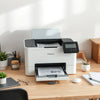
Multifunction Print Scan Copy refers to a single machine that combines three core document tasks: printing, scanning, and copying. Instead of moving between separate printers and scanners, you can handle the whole paper workflow from one device. That matters when you want fewer steps, faster turnaround, and a clean desk setup.
Think of it like a document workstation. You can print your forms, scan receipts or signatures, and make copies for sharing—without waiting for another gadget to do its part. For many buyers, the goal is simple: get dependable output with less friction.
Start by placing the device on a flat, stable surface with good ventilation. Connect the power cable firmly, then switch on. If your model uses paper trays, pull them out gently and confirm they sit straight. A steady setup helps avoid paper jams later.
Load paper with the correct orientation and do not overfill the tray. Fan the stack lightly so edges align. When paper is loaded straight, prints look sharper and feed more reliably.
For scanning or copying, basic setup varies by model. Some devices work directly with simple controls for copying. For scanning to your phone or computer, follow the on-device prompts and ensure the device is connected to the same network you use. If you prefer offline scanning, you can still create copies for quick sharing.
Run a short test: print a page, scan it back, and make a copy. Review alignment, brightness, and edge clarity. If anything looks off, revisit paper settings and ensure the document guides are positioned correctly.
Create a predictable flow: scan first when you want a digital backup, copy when you need multiple paper copies, and print when you need final copies. This reduces rework and helps you finish tasks in the right order.

Diagram-style workflow: scan, copy, print icons
When you buy a Multifunction Print Scan Copy machine, you’re buying freedom from “which device do I need?” The benefits show up in daily scenarios where time and accuracy matter.
From client paperwork to invoices and signed forms, you’ll often need print and scan in the same day. Instead of saving and re-locating files, scan to digitize, then print exactly what you need later. Copying is helpful for keeping duplicates for records and quick sharing.
Whether it is notes, assignments, or learning materials, students regularly need copies. A multifunction document device makes it easier to reproduce worksheets, scan printed chapters, and keep study packs organized in one workflow.
Applications often require multiple document versions. You may need to scan an ID, print completed forms, and copy supporting pages. With one machine handling it all, you can reduce the stress of last-minute document prep.
Even a small team can generate large volumes of paperwork. Scanning receipts and copying contracts saves time on manual sorting. When you can print quickly from digital files, you also reduce waiting around for the next step.
In many customer reviews, people mention how quickly they become comfortable with the workflow. One common theme is that daily tasks feel simpler once the machine is set up and paper feeding is consistent.
Shoppers typically look for three things: reliability, simplicity, and practical value. A multifunction document device delivers by bringing everyday tasks into one streamlined process.
One testimonial-style pattern many buyers share is the “desk satisfaction” moment. They set up the device, print a few pages, scan and copy once, then realize they no longer need to borrow a printer or visit another location for documents. That independence is what drives repeat satisfaction.

Checklist visuals: setup, test, scan, copy, print
If you also want to improve your overall home setup, it helps to look at how other electronics make daily tasks smoother. For example, if you’re considering upgrades for media or workspace comfort, you can explore more options in the electronics collection on electronics.
To get the best results from your Multifunction Print Scan Copy device, simple care matters. Maintenance does not need to be complicated. The goal is to prevent issues that can reduce clarity, cause streaks, or lead to paper feed problems.
Use paper that matches the recommended type and size for your model. Store paper in a dry area. Moisture can affect feeding and print quality.
If you scan documents often, keep the glass or scanning area free from dust and smudges. A quick, careful clean helps maintain sharp edges and readable text.
If you only print occasionally, run a quick test print every so often. This helps ensure output stays consistent and reduces the chance of quality falling when you need the device urgently.
Remove small paper scraps and debris if your model shows a paper feed warning. Clear paths reduce jams and help the device feed smoothly.
Choose the right settings for text-heavy documents versus graphics. If you want crisp scanning, use appropriate resolution options. For copies, ensure the size matches the paper you loaded.
These small habits protect the quality you expect and help extend the usefulness of your all-in-one workflow.
You can print documents, scan paper into digital files, and copy pages for multiple copies. Many people use it for office paperwork, school tasks, and personal document preparation.
In most cases, it is simpler because everything is in one place. Once the scan workflow is set up, you can reuse the same process for future documents.
Start with correct paper loading, clean the scanning surface, and use the appropriate print or scan settings for your document type. Running a test page also helps you catch alignment or quality issues early.
No. Many all-in-one devices let you copy directly from the page placed on the scanner surface, which can save time when you are duplicating a document as-is.
Ready to simplify your paper workflow? Choose a Multifunction Print Scan Copy setup that matches how you work—whether you handle daily paperwork at home or manage documents for a small team. Start with a quick test document, then build a routine around scanning, copying, and printing when you need it most. If you want more guidance on choosing complementary home electronics, visit electronics for curated options.
Disclaimer: This article is for general informational purposes only. Product features, compatibility, and performance depend on the specific device you choose. Always refer to the manufacturer’s instructions and specifications before use.


At Ysvara Lifestyle, we help people make smarter shopping choices by curating the best, most reliable products from trusted brands across electronics, home appliances, fashion, and everyday essentials. We spend hours comparing real-world performance, customer feedback, and value-for-money so you don’t have to. Every recommendation is based on usefulness, durability, and honest insights — not just hype. Our mission is simple: to make online shopping effortless, transparent, and truly helpful. Explore better choices, discover hidden deals, and buy with confidence. ✨


