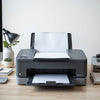
Automatic Document Feeder Benefits and Setup Tips
, by Amita Choudhary, 11 min reading time
, by Amita Choudhary, 11 min reading time
Updated on: 2026-09-01
A good Automatic Document Feeder helps you scan or upload paperwork with far less effort. It reduces manual steps, so you can process forms, invoices, IDs, and receipts faster. With a consistent feed, you also get steadier results and fewer interruptions. If your workflow depends on batch document handling, this product upgrades speed, accuracy, and everyday convenience.
What an Automatic Document Feeder Solves
Step-by-Step Guide to Using It
Where It Fits in Real Workflows
Paper-based work can slow everything down. Even if you have a scanner or office software that handles digital files well, the real bottleneck is often the same: feeding documents one by one. That repeated motion wastes time, increases handling errors, and makes it harder to process larger batches in a single session.
An Automatic Document Feeder is built to remove that friction. Instead of manually placing each page, you load a stack and let the system handle the sequence. The result is smoother, faster batch processing for daily tasks like document capture, form submissions, and record keeping. It also supports a more consistent workflow when multiple people need to digitize the same types of documents.
For teams and individuals who handle invoices, contracts, KYC files, shipping forms, or school paperwork, the benefits are practical. You spend less time feeding pages and more time using the output—uploading to cloud tools, organizing folders, and sharing clean digital copies with clients or teammates.
Myth 1: An Automatic Document Feeder is only for big offices.
Fact: Small teams and home offices use document feeders to handle everyday batch tasks like receipts, paperwork, and forms. It helps anyone who scans more than a few pages at a time.
Myth 2: Automated feeding always causes more errors.
Fact: When the feeder is set up correctly, it improves consistency. You reduce missed pages and interruptions that come from repeated manual handling.
Myth 3: You still need to supervise every scan.
Fact: You should do an initial check, but once the stack is aligned and ready, you can focus on the next step—reviewing digital output, tagging files, and uploading—rather than feeding page after page.
Use this simple approach to get smooth results with your Automatic Document Feeder and keep your scans reliable.
Prep the stack: Straighten pages, remove staples if needed, and keep document sizes uniform when possible.
Set the guides: Adjust the document guides so the paper sits straight. This improves alignment and reduces misfeeds.
Load carefully: Place the stack into the feeder tray without overfilling. Leave enough space for smooth paper movement.
Select your scan mode: Choose settings that match the document type (for example, text-heavy pages versus forms with tables).
Run a test for new batches: If your documents vary, scan one short sample first to confirm alignment and quality.
Review and name files: After scanning, quickly check for missing pages. Then label files in a way that makes retrieval easy later.
Maintain the feeder: Keep the feed area clean and follow basic care to support consistent performance over time.

Stack alignment, guide markers, and batch scanning flow
An Automatic Document Feeder works best when you process documents in groups. That means it shines in scenarios where speed matters, or where you handle repeated document types every day.
Invoices and receipts pile up fast. With a document feeder, you can digitize stacks in a single run, then store them by month, vendor, or project. This reduces the back-and-forth that happens when pages are missing or files are misordered.
Businesses that collect ID proofs, address proofs, forms, and signed agreements benefit immediately. Batch handling makes it easier to capture complete sets, keep page order correct, and reduce the time your staff spends on manual feeding.
Contracts, annexures, and supporting documentation often arrive with multiple pages and attachments. A feeder supports a steady workflow for creating organized digital records, so staff can focus on review and approval instead of handling paper.
Schools, coaching centers, and training programs often deal with admission forms, attendance records, fee documents, and certificates. Automating the feed helps you move through paperwork without turning every task into a slow, repetitive process.

Before-and-after workflow: manual pages to organized files
People buy document feeders for one reason: they want their workflow to feel easier. Below are common themes customers mention when they switch from manual page-by-page scanning to an automated feed experience.
A frequent complaint with manual scanning is missing pages after long sessions. Customers report that an Automatic Document Feeder helps maintain more consistent ordering, especially when digitizing multi-page documents like invoices, forms, and agreements.
Batch scanning reduces start-stop work. Instead of repeatedly placing pages, users can load a stack and continue with scanning. That shift typically makes it easier to clear backlog—such as end-of-month billing or onboarding document intake.
Many customers describe the difference as “less effort and fewer interruptions.” When the setup is correct and documents are aligned, the feeder supports a calmer workflow where staff can focus on reviewing results and organizing files.
If you want a straightforward way to upgrade your daily paper-to-digital routine, this is where the Automatic Document Feeder delivers real value: less manual work, smoother batch handling, and output you can trust.
Choosing the right configuration is simple if you match it to your document habits. Consider these points before you commit.
If your workload includes standard letter or A4 pages most of the time, it’s usually easier to maintain consistent feeding. For mixed sizes, test a small batch first and adjust the guide alignment as needed.
If you scan daily or handle multi-page batches multiple times a week, automation matters more. A document feeder helps reduce repetitive labor, which adds up over time.
A feeder is only part of the system. Decide how you will name and store files: by client, by month, by document type, or by project. When your workflow is organized, you get more value from each scan session.
Check that your scanning workflow works smoothly with your existing devices and software. The best experience comes when the feeder setup, scan settings, and storage process align.
For teams already investing in smart home and office equipment, it can be helpful to think in systems. For example, if you’re also improving home or workspace comfort and productivity, you may like guidance on choosing efficient electronics such as a home air purifier—here’s a related read: Choosing a Home Air Purifier for Clean Air. The same mindset applies: pick tools that reduce repetitive effort and support your everyday routine.
If your office setup includes display or entertainment equipment you use during work breaks, you can also explore content like Inverter Split AC: Efficient Cooling for Homes to keep your workspace comfortable while you get more work done.
It can, but results depend on your document consistency. For best performance, start with a small test batch. Keep pages aligned, avoid overfilling, and adjust guides so the stack sits straight. If your documents vary a lot in size or thickness, expect a little extra setup time to keep feeding smooth.
Most misfeeds come from misalignment, overfilled trays, or documents that aren’t ready to feed. Straighten the stack, remove clips or staples if needed, and make sure the paper sits within the guides. Also, run a quick test when you change document types so you can confirm the settings.
Yes. When the pages are fed in a consistent order, it becomes easier to review files quickly and rename them correctly. That helps you store documents faster and reduces time spent fixing missing or out-of-order pages.
An Automatic Document Feeder is a practical upgrade for anyone who scans paperwork in batches. It reduces repetitive page feeding, helps improve consistency during multi-page capture, and speeds up everyday workflows like invoice digitization, onboarding document intake, and administrative filing. With a simple prep routine, correct alignment, and quick file naming habits, you can turn scanning into a smoother, more reliable process.
If you’re ready to spend less time on manual feeding and more time using your digital documents, take the next step. Upgrade your document capture workflow with an Automatic Document Feeder and enjoy batch scanning that feels faster, cleaner, and easier.
Disclaimer: Product features and performance can vary by model and document type. Always follow the manufacturer guidance for setup, safe handling, and cleaning. The information in this article is for general educational purposes and does not replace device documentation.


At Ysvara Lifestyle, we help people make smarter shopping choices by curating the best, most reliable products from trusted brands across electronics, home appliances, fashion, and everyday essentials. We spend hours comparing real-world performance, customer feedback, and value-for-money so you don’t have to. Every recommendation is based on usefulness, durability, and honest insights — not just hype. Our mission is simple: to make online shopping effortless, transparent, and truly helpful. Explore better choices, discover hidden deals, and buy with confidence. ✨


